How to add conditional logic to a WordPress form
Conditional logic shows a question only when it applies: a “Rough budget” field that appears after someone picks “New project”, or a company name that only business customers see. In Fennec Forms every field can have rules, and it’s part of the free plugin.
Updated · Written for Fennec Forms 1.0.0 · Screenshots from a real WordPress install running the free plugin
What you need
- A WordPress site running WordPress 6.9 or later and PHP 8.1 or later
- Fennec Forms installed and a form to edit
Steps
Step 1: Install Fennec Forms
Download the free plugin from fennecpress.com, then in wp-admin go to Plugins → Add New → Upload Plugin, choose the zip and activate it. It needs WordPress 6.9+ and PHP 8.1+. There is no account to create and no license key.
Step 2: Add the question that decides
Open your form under Fennec Forms and add the field whose answer drives the logic, usually a Dropdown, Multiple choice or Checkboxes field. Rules can only look at fields that come earlier in the form, so put it above the fields it controls.
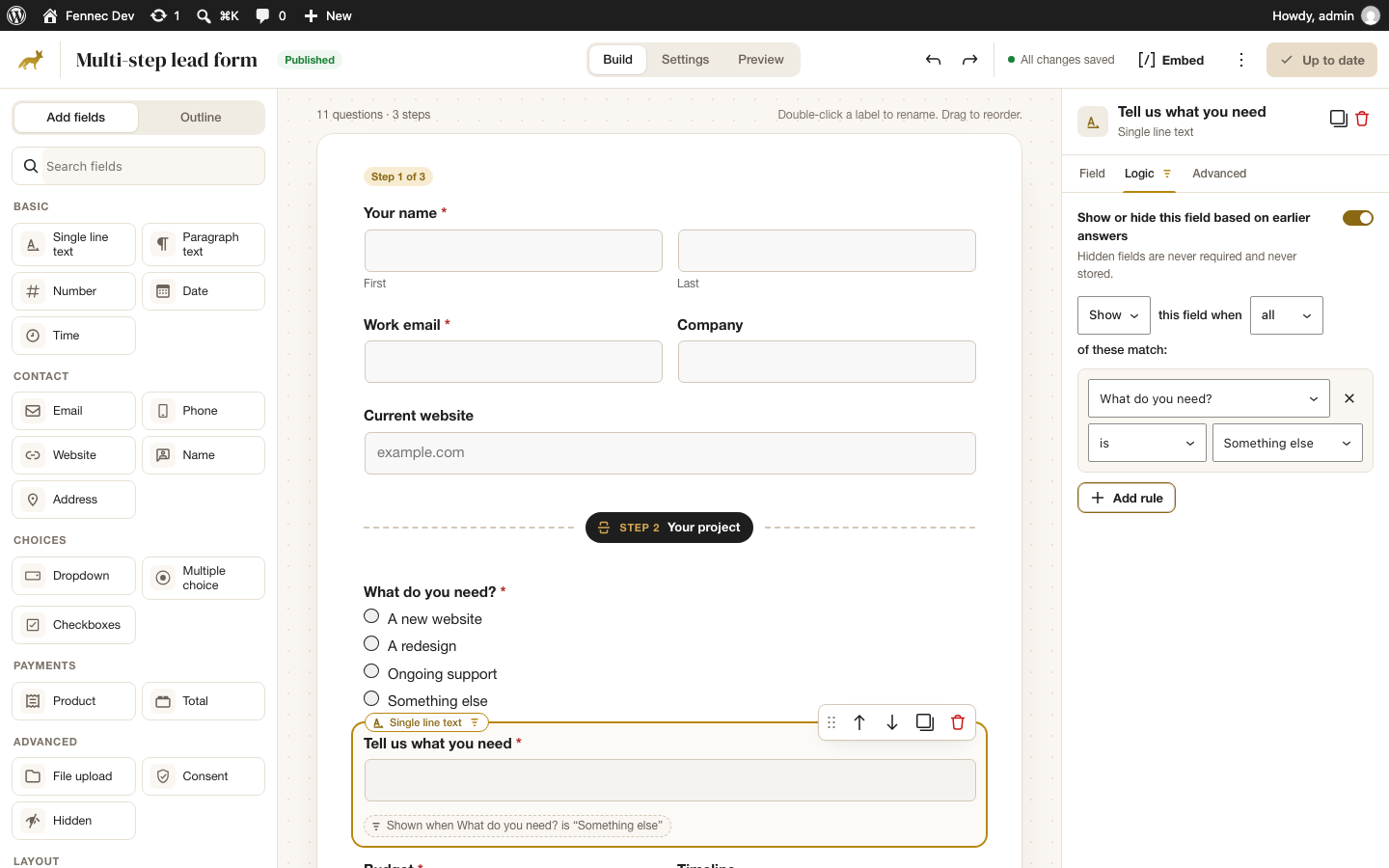
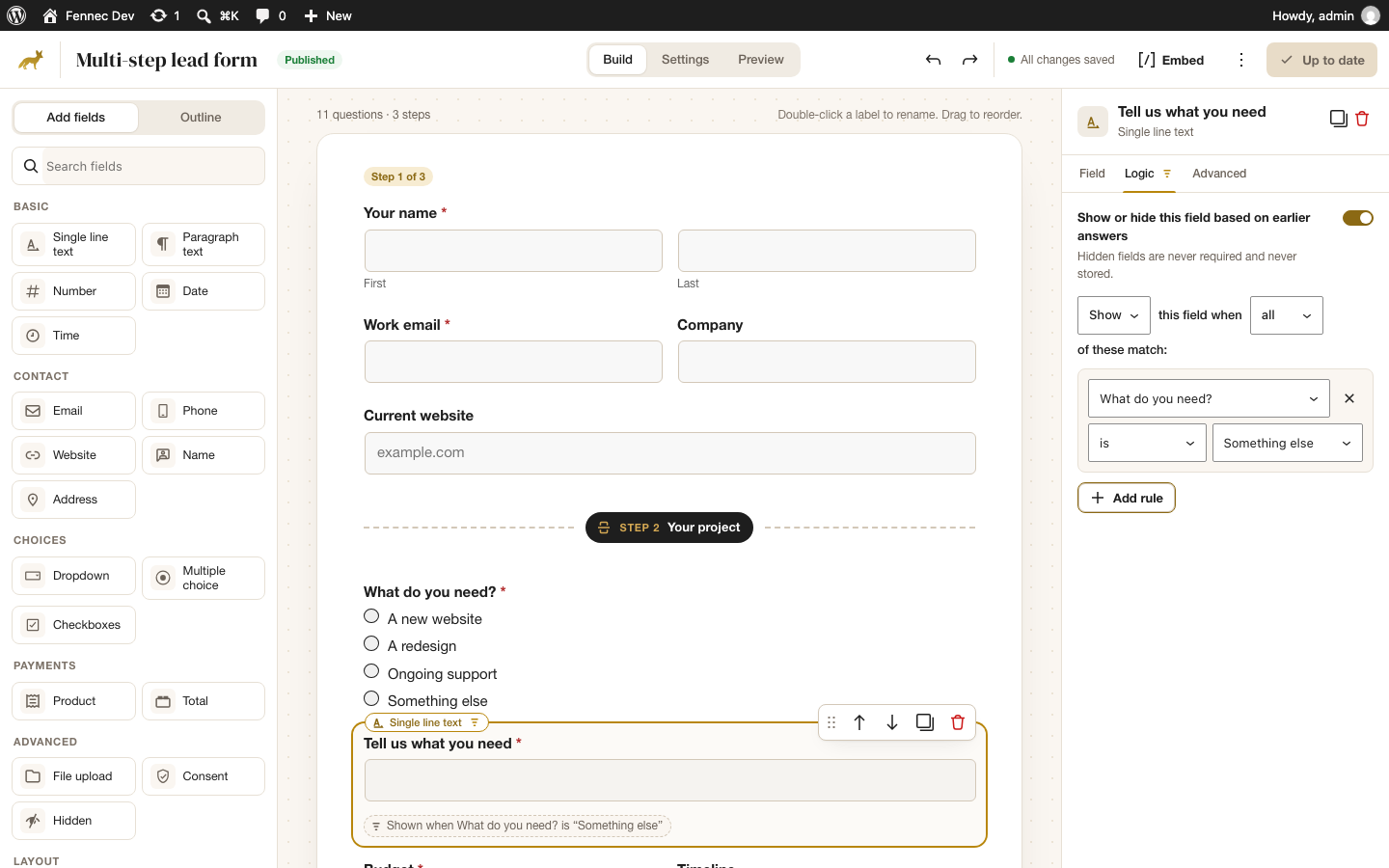
Step 3: Select the field to show or hide and open its Logic tab
Click the field that should appear or disappear, open the Logic tab in the right-hand panel, and switch on “Show or hide this field based on earlier answers”.
Step 4: Choose Show or Hide, and All or Any
The rule reads like a sentence: Show (or Hide) this field when all (or any) of these match. Pick the two words that fit.
Step 5: Add your rules
Pick the earlier field, a comparison and a value. The comparisons are: is, is not, contains, does not contain, is empty, is not empty, is greater than and is less than. Click “Add rule” for more conditions.
Step 6: Preview, then publish
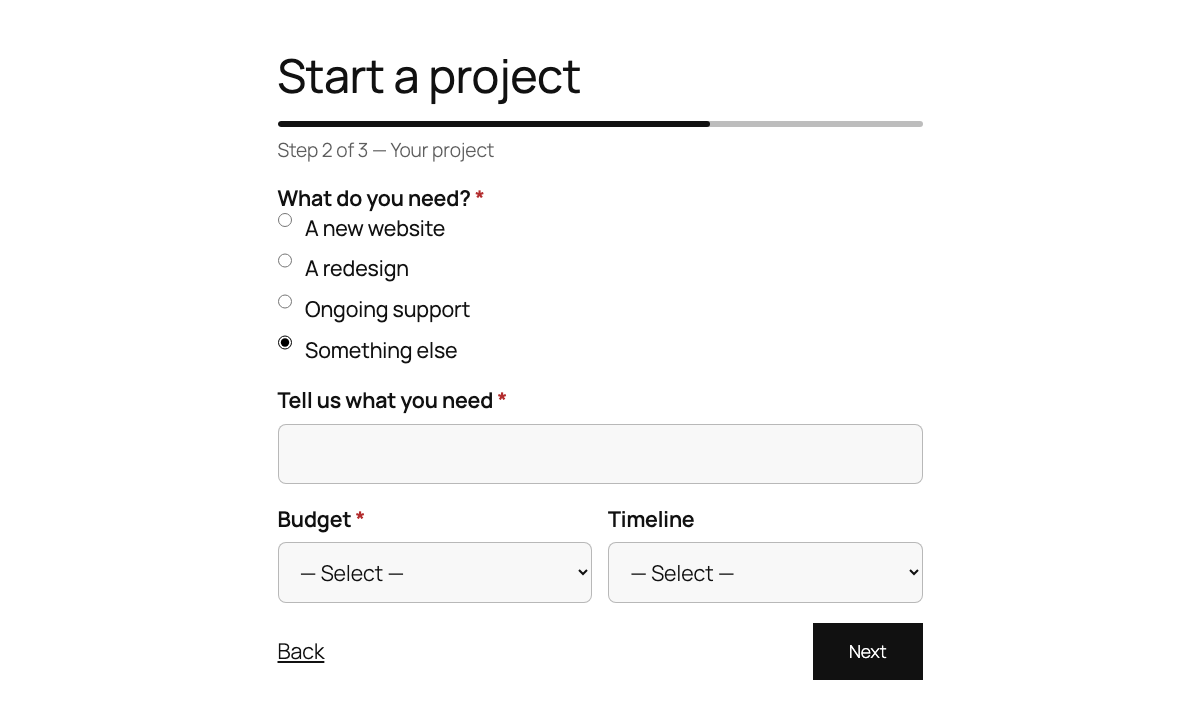
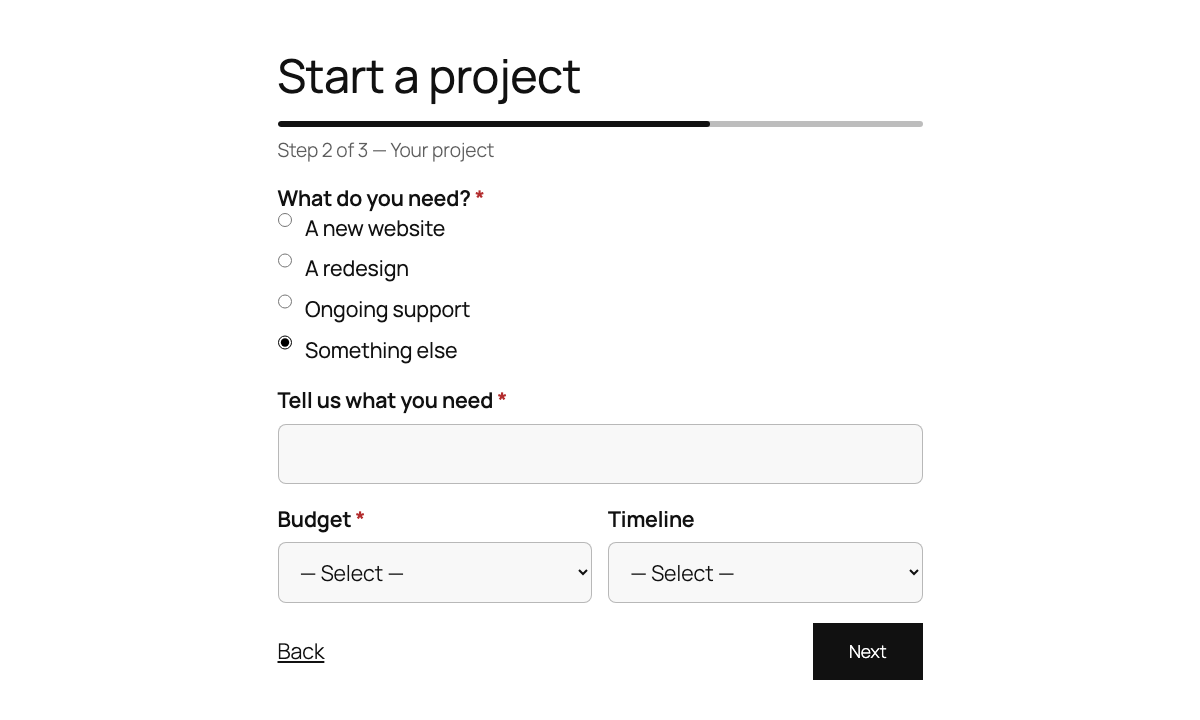
Fields with rules get a label on the canvas, such as “Shown when What do you need? is ‘Something else’”, so you can see which ones are conditional. Use the Preview tab to try both paths, then click Publish and add the form to a page with the “Fennec Form” block or its shortcode.
Good to know
- A hidden field is never required and is never stored, so it can’t block a submission or leak into your entries, emails or webhooks.
- Rules work inside multi-step forms too, so a whole step can be skipped by hiding its fields.
- Sending notifications to different people based on the answers is a Fennec Forms Pro feature (notification routing). Nested rule groups aren’t built yet; they’re planned for Pro.