How to restrict content to members in WordPress
To keep content for members you need three things: membership levels, a way to join, and rules that hide the content from everyone else. Fennec Members does all three in the free plugin, and it hides restricted content from the REST API, RSS feeds, search results and comments too, not just from the page.
Updated · Written for Fennec Members 1.0.0 · Screenshots from a real WordPress install running the free plugin
What you need
- A WordPress site running WordPress 6.9 or later and PHP 8.1 or later
- A Stripe account only if you want paid levels (free levels need nothing else)
Steps
Step 1: Install Fennec Members
Download the free plugin from fennecpress.com, then in wp-admin go to Plugins → Add New → Upload Plugin, choose the zip and activate it. It needs WordPress 6.9+ and PHP 8.1+.
Step 2: Create a membership level
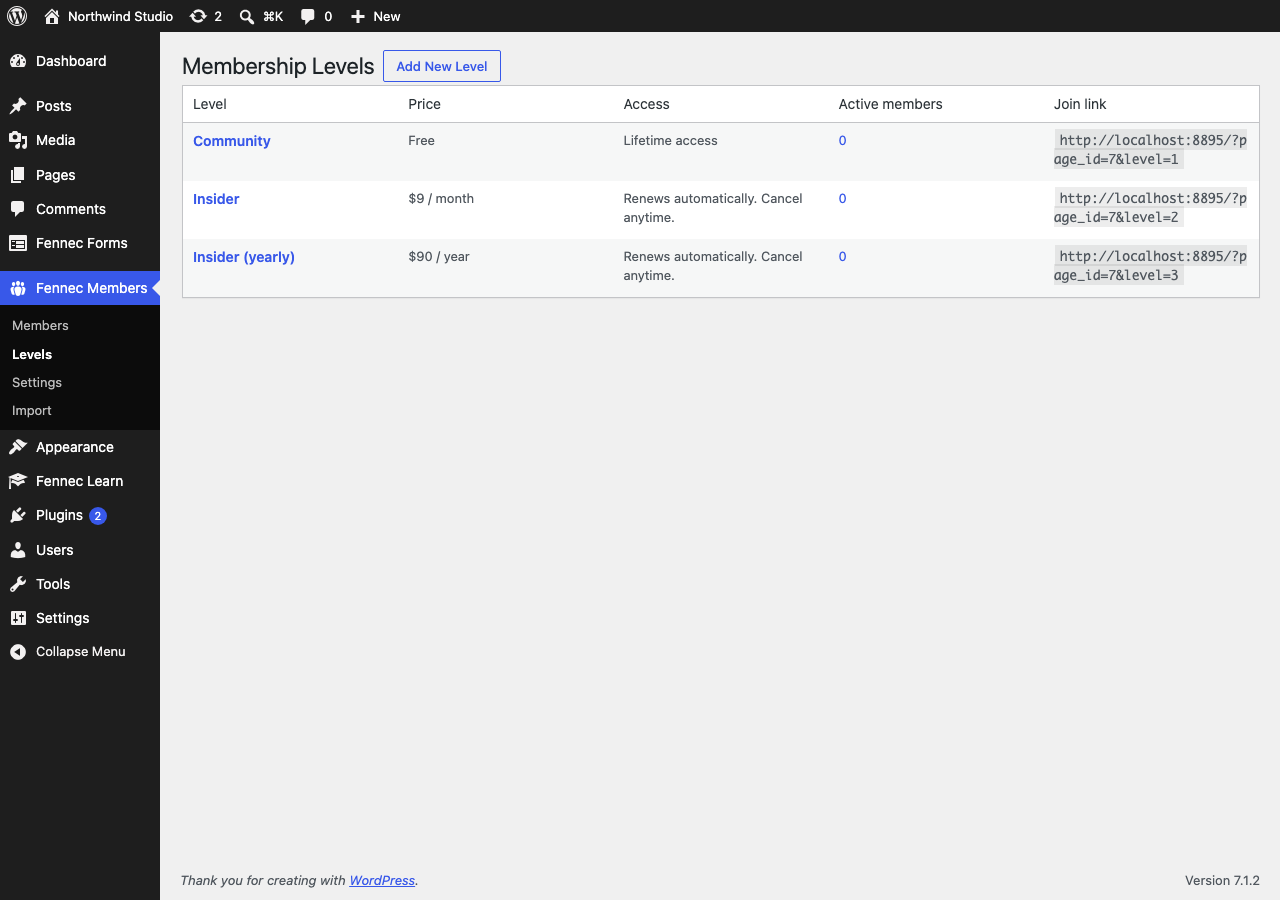
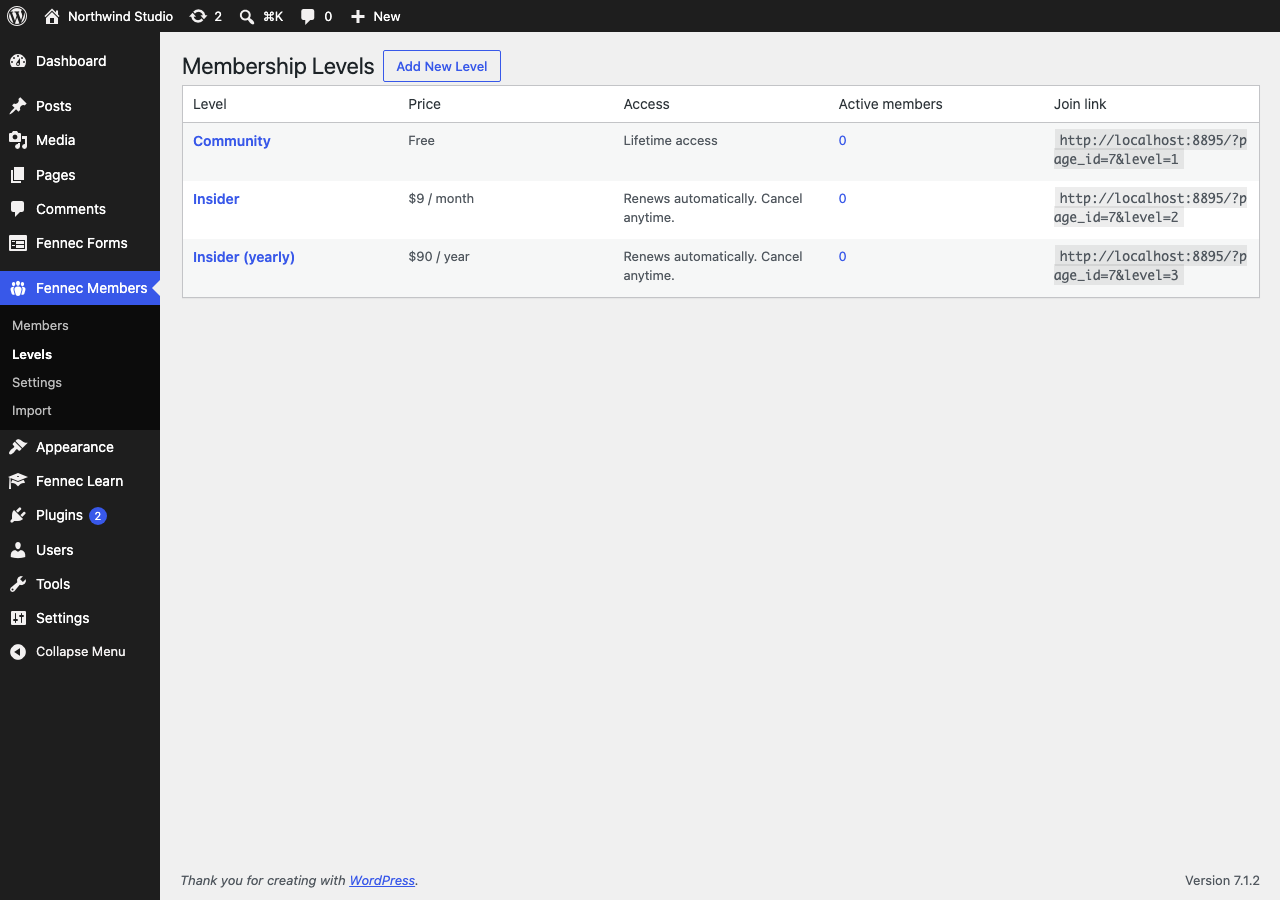
Go to Fennec Members → Levels and add a level. Choose free, one-time payment or subscription, set the price and currency for paid levels, and optionally a fixed length (a 30-day pass, for example).
Step 3: Create the Join and Account pages
Under Fennec Members → Settings, click “Create pages for me”. That adds a Join page (a pricing table of your levels) and an Account page where members see and manage their membership. You can also place the Join and Account blocks on pages yourself.
Step 4: Connect Stripe (paid levels only)
Paste your Stripe secret key under Fennec Members → Settings, add a webhook endpoint in Stripe (Developers → Webhooks) with the URL and events shown on that screen, and paste its signing secret. Payments go to your own Stripe account with no Fennec fee.
Step 5: Restrict a post or page
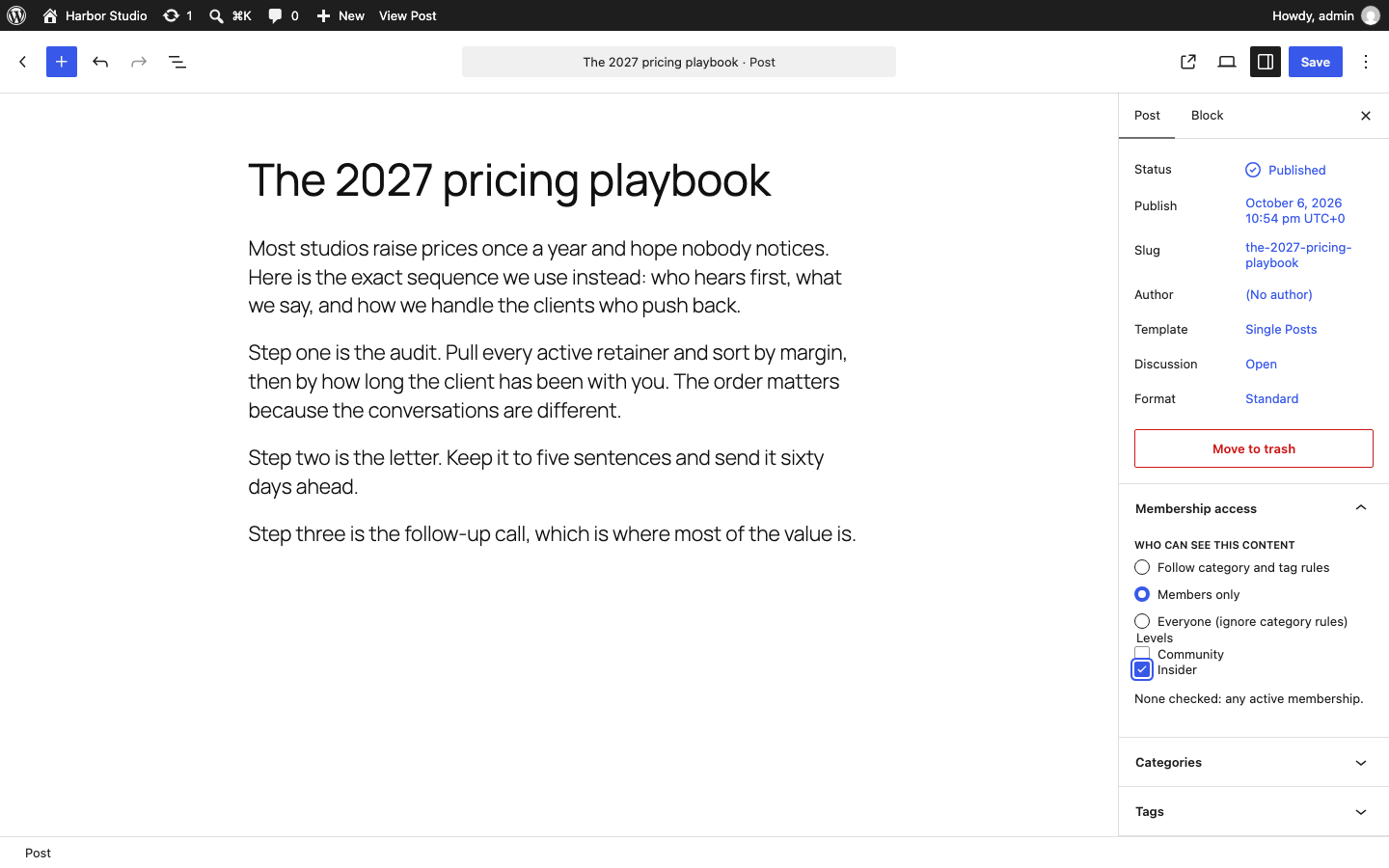
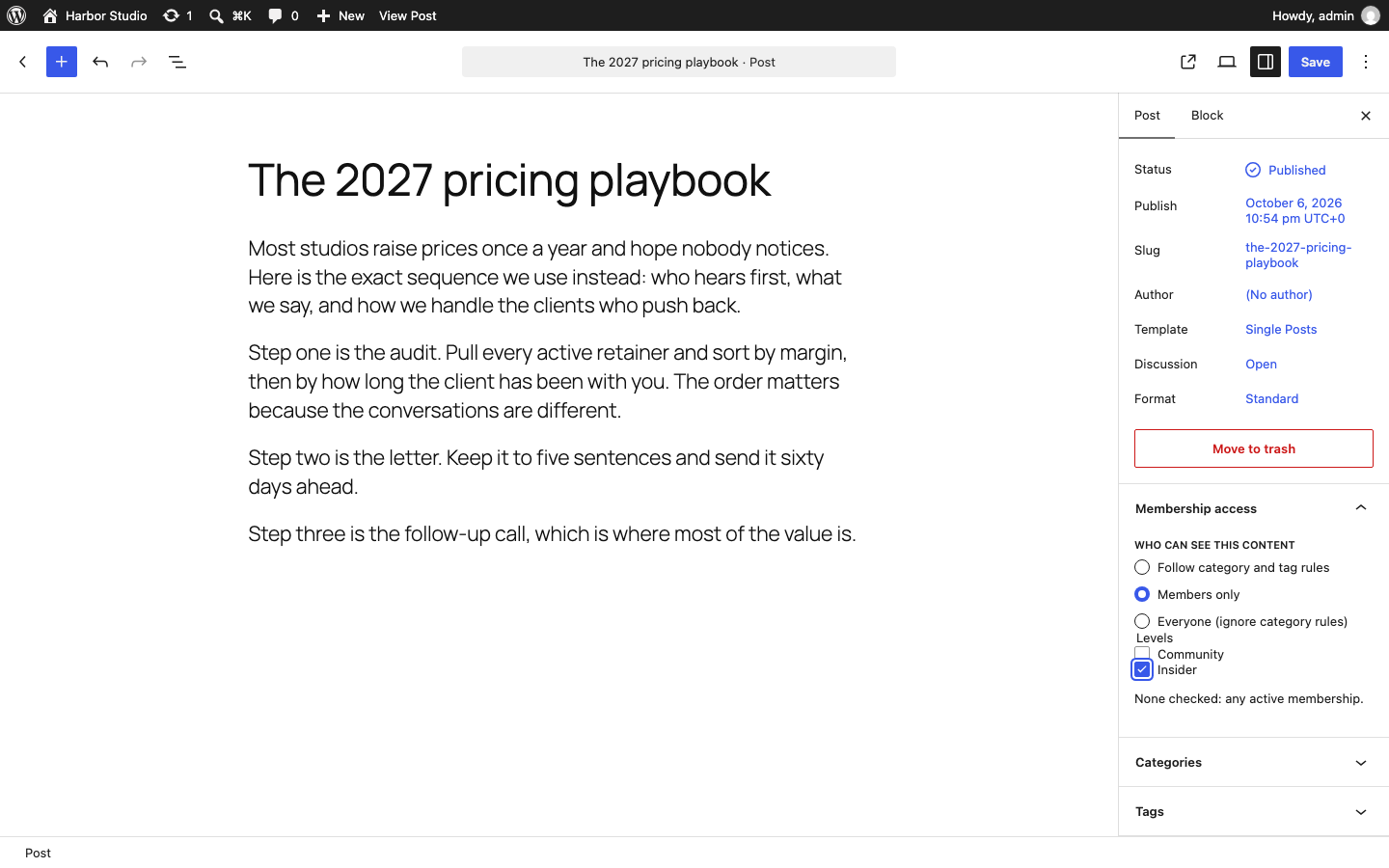
Open the post or page and find the Membership access setting (a panel in the editor, or a box in the classic editor). Choose “Members only”, then tick the levels that may see it. Leave every level unticked to allow any active membership.
Step 6: Or restrict part of a page, or a whole category
To hide only part of a page, wrap it in the “Members Only” block or the [fennec_members_only] shortcode. To restrict every post in a category or tag, edit the category and tick “Posts in this term are for members only”; a single post can still override that rule.
Step 7: Check it logged out
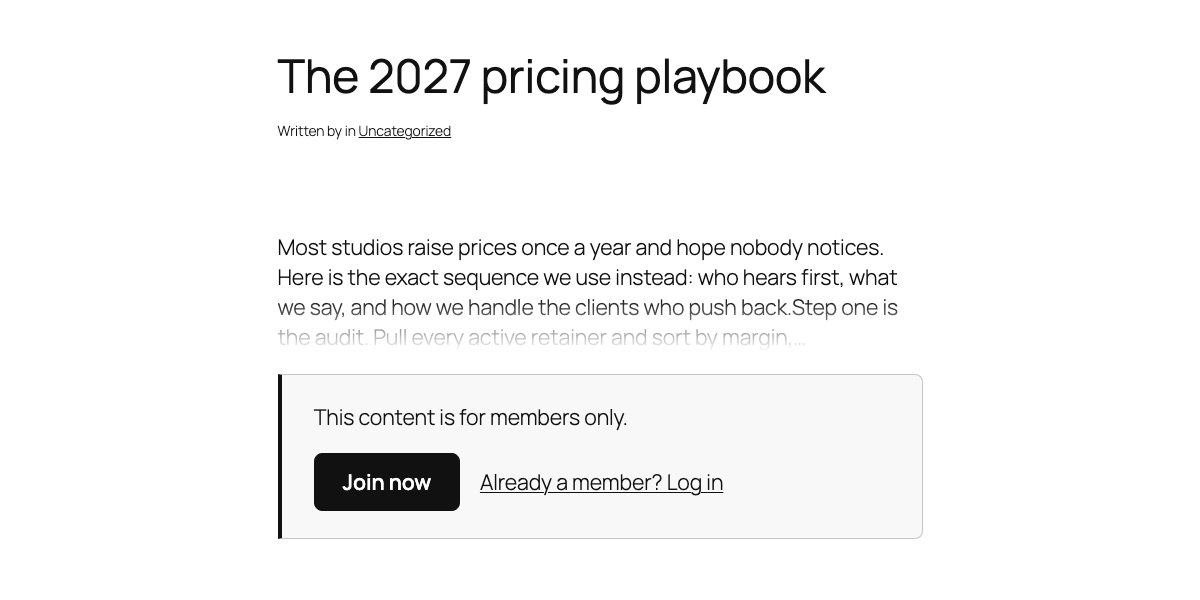
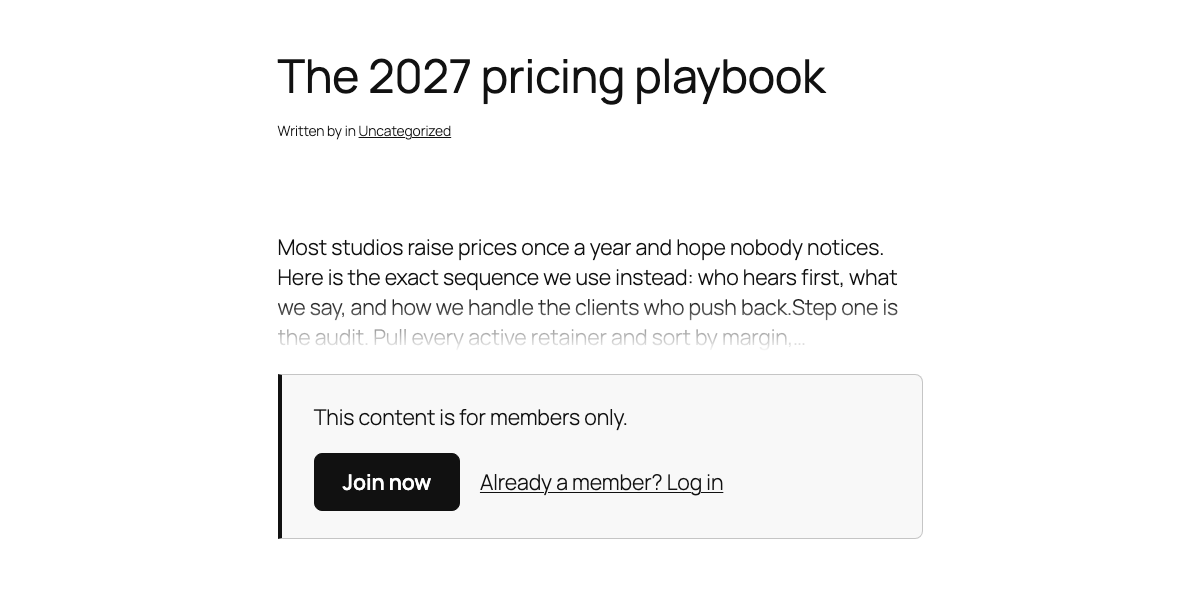
Open the content in a private window. Visitors see a short teaser and your message with “Join now” and “Log in” links instead of the full content. Short posts aren’t given away whole by the teaser.
Good to know
- Logged-out visitors all see the same restricted version, so page caching is safe for them. If your cache also caches logged-in users, exclude members-only pages.
- Administrators and the post’s editors always see everything.
- Content dripping (opening content on a schedule) and protected downloads aren’t in Fennec Members yet; they’re planned for Members Pro.
- Moving from MemberPress or Paid Memberships Pro? Fennec Members imports levels, members and content rules, with a dry run first.